


Plenty of teams design control panels and wire harnesses in a mix of Excel, AutoCAD blocks, and hand-updated spreadsheets — and for a while, that works fine. The trouble starts when a panel grows past a certain complexity: wire counts climb, terminal numbering drifts out of sync with the physical build, and every design change means updating three disconnected documents by hand.
That’s usually the point teams start asking whether SOLIDWORKS Electrical is worth adding to their toolset. This guide walks through what it actually does, the different package tiers, and the specific signals that tell you it’s time to make the switch.
What SOLIDWORKS Electrical Actually Does
SOLIDWORKS Electrical is a purpose-built ECAD platform for schematic design, panel layout, and wire, cable, and harness routing — sold as a companion to core SOLIDWORKS 3D CAD rather than a replacement for it.
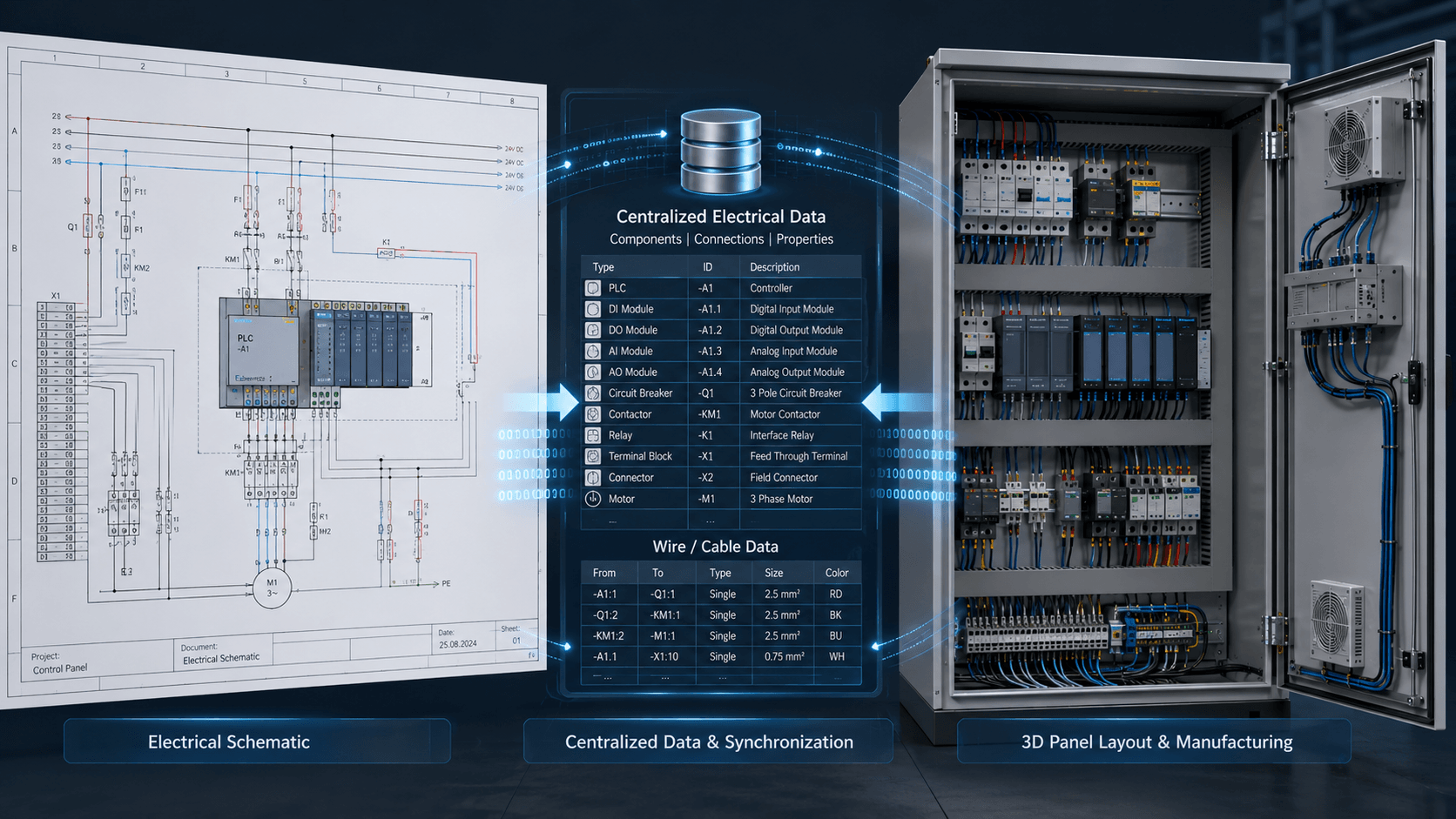
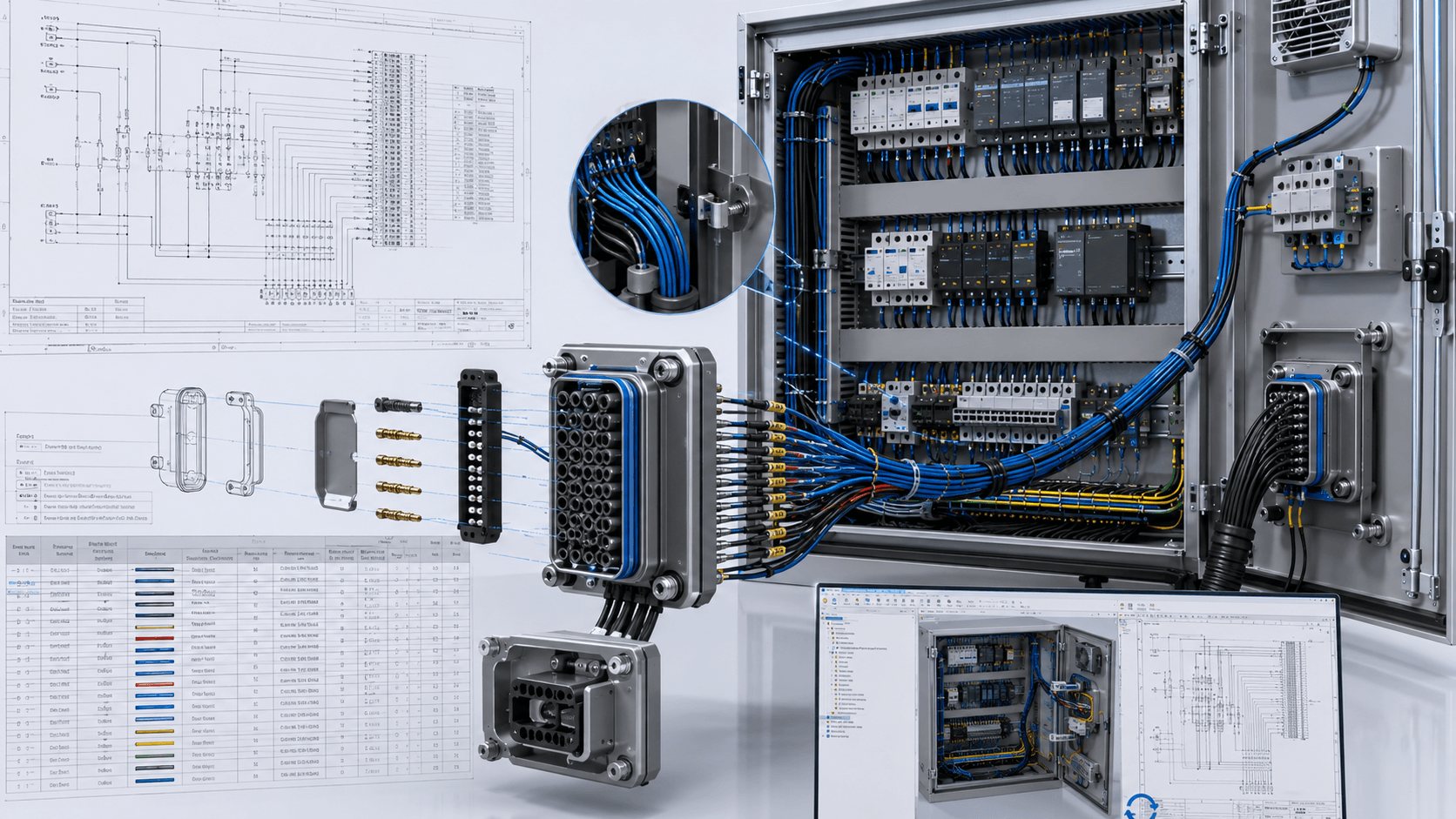
At its core, it manages three interconnected things: the electrical schematic (single-line, multi-line, and PLC diagrams), the 2D or 3D panel/cabinet layout, and the underlying wire and component database that ties both together — so a terminal renumbered in the schematic updates automatically everywhere it’s referenced.
That database-driven approach is the real differentiator versus general-purpose CAD. In a tool like AutoCAD, a wire symbol is just a line with a label; renaming or rerouting it is a manual edit. In SOLIDWORKS Electrical, that same wire is a data object connected to a terminal, a cable, and a BOM line — so a single change propagates through schematics, reports, and 3D routing without separate manual updates.
For more information about the overall platform, see the
official SOLIDWORKS Electrical overview
.
The Three SOLIDWORKS Electrical Package Tiers, Explained
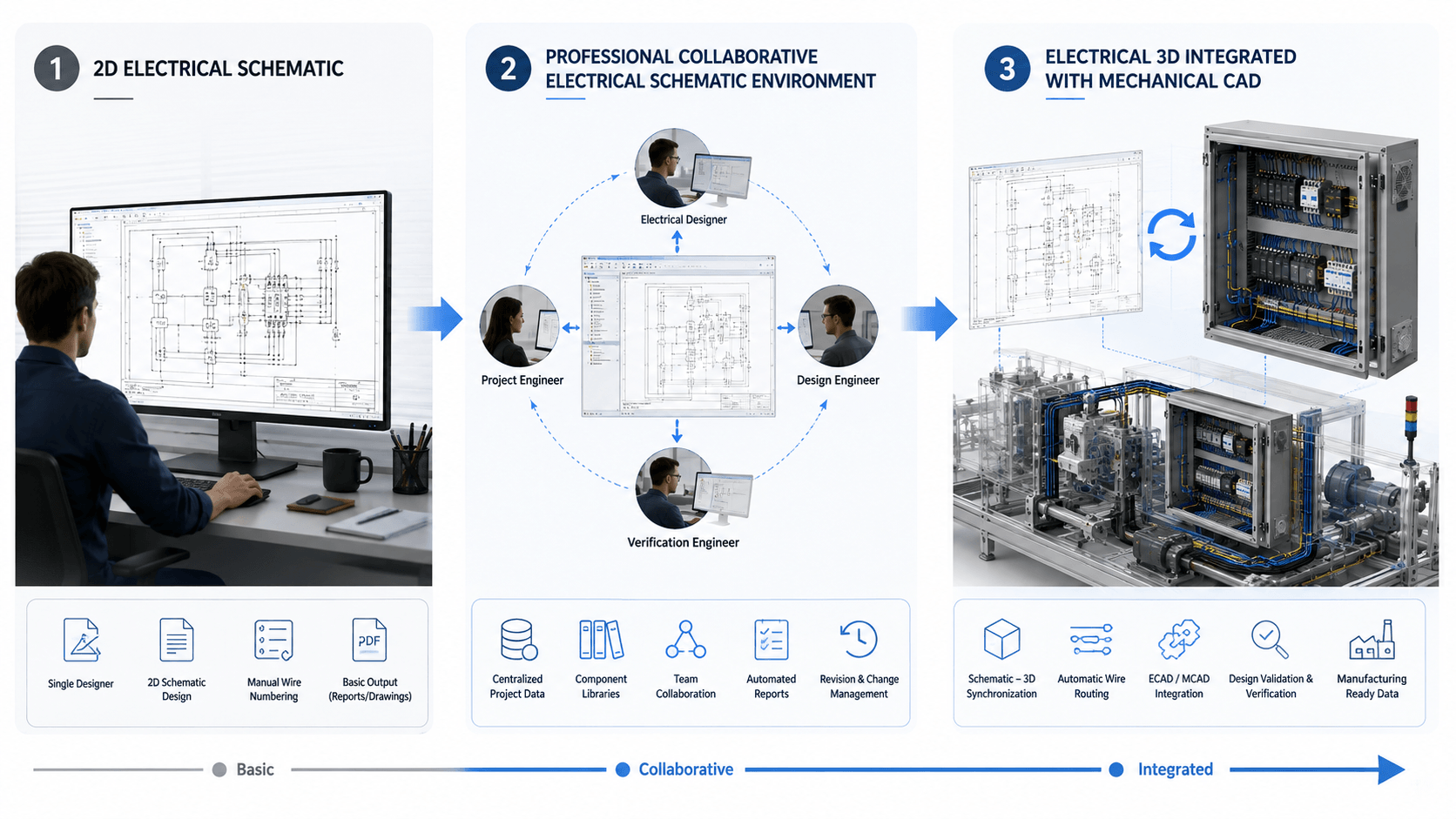
Understanding the tiers matters because the “when do you need it” question is really three separate questions.
SOLIDWORKS Electrical Schematic Standard
A standalone 2D schematic tool for a single designer working independently, with built-in symbol libraries and automated wire numbering. It does not support shared project libraries across a team or connect to 3D CAD.
If your primary requirement is schematic creation and electrical documentation, you can also explore
SOLIDWORKS Electrical Schematic
on TechSavvy.
SOLIDWORKS Electrical Schematic Professional
Adds multi-user collaboration, shared library and project data, custom report generation, and network-floating licenses — the right tier once more than one designer is pulling from the same component library or working on the same project.
SOLIDWORKS Electrical 3D
Paired with Schematic Professional, Electrical 3D connects schematic data directly into SOLIDWORKS 3D assemblies, enabling auto-routing of wires, cables, and harnesses inside the physical model, clearance checking, and bidirectional sync between the 2D schematic and 3D layout.
The official
SOLIDWORKS Electrical 3D
documentation explains how the tool connects electrical project data with 3D cabinet layouts and wire, cable, and harness routing.
SOLIDWORKS Electrical Professional
SOLIDWORKS Electrical Professional bundles Schematic Professional and Electrical 3D together, which is the package most growing teams end up on.
According to SOLIDWORKS, Electrical Professional combines
SOLIDWORKS Electrical Schematic Professional and SOLIDWORKS Electrical 3D
into a unified electrical and mechanical design workflow.
Signals You Actually Need SOLIDWORKS Electrical
Not every team needs the full platform. These are the clearest indicators that plain 2D drawings or generic CAD blocks have stopped scaling:
-
You’re manually cross-checking wire lists against schematics.
If someone spends real time each release comparing a wire number in a drawing against the BOM to make sure they still match, that reconciliation work is exactly what the platform automates. -
Panels are getting physically dense.
Once you’re routing high-pin-count connectors — 64 or 128 pins isn’t unusual on modern machine control panels — manually tracking every pin assignment in a spreadsheet becomes error-prone fast. -
Mechanical and electrical teams keep discovering fit problems late.
If wire harnesses or panel components are routinely found to clash with mechanical structure only after a prototype build, that’s a sign the electrical and mechanical design data need to live in a synchronized 3D environment rather than being handed off as static drawings. -
You need to separate high-voltage and control wiring by rule, not memory.
Segregation requirements — keeping power wiring away from sensitive signal lines — are far easier to enforce with routing rules than by manually eyeballing a layout each time. -
Documentation output is a bottleneck at handoff.
If generating a clean wire list, from-to report, or panel drawing for manufacturing takes a day of manual formatting, that’s specifically the kind of repetitive documentation task the platform is built to automate. -
More than one person touches the same electrical project.
The moment two designers need to share a symbol library or work on the same schematic without emailing files back and forth, Schematic Standard has already been outgrown.
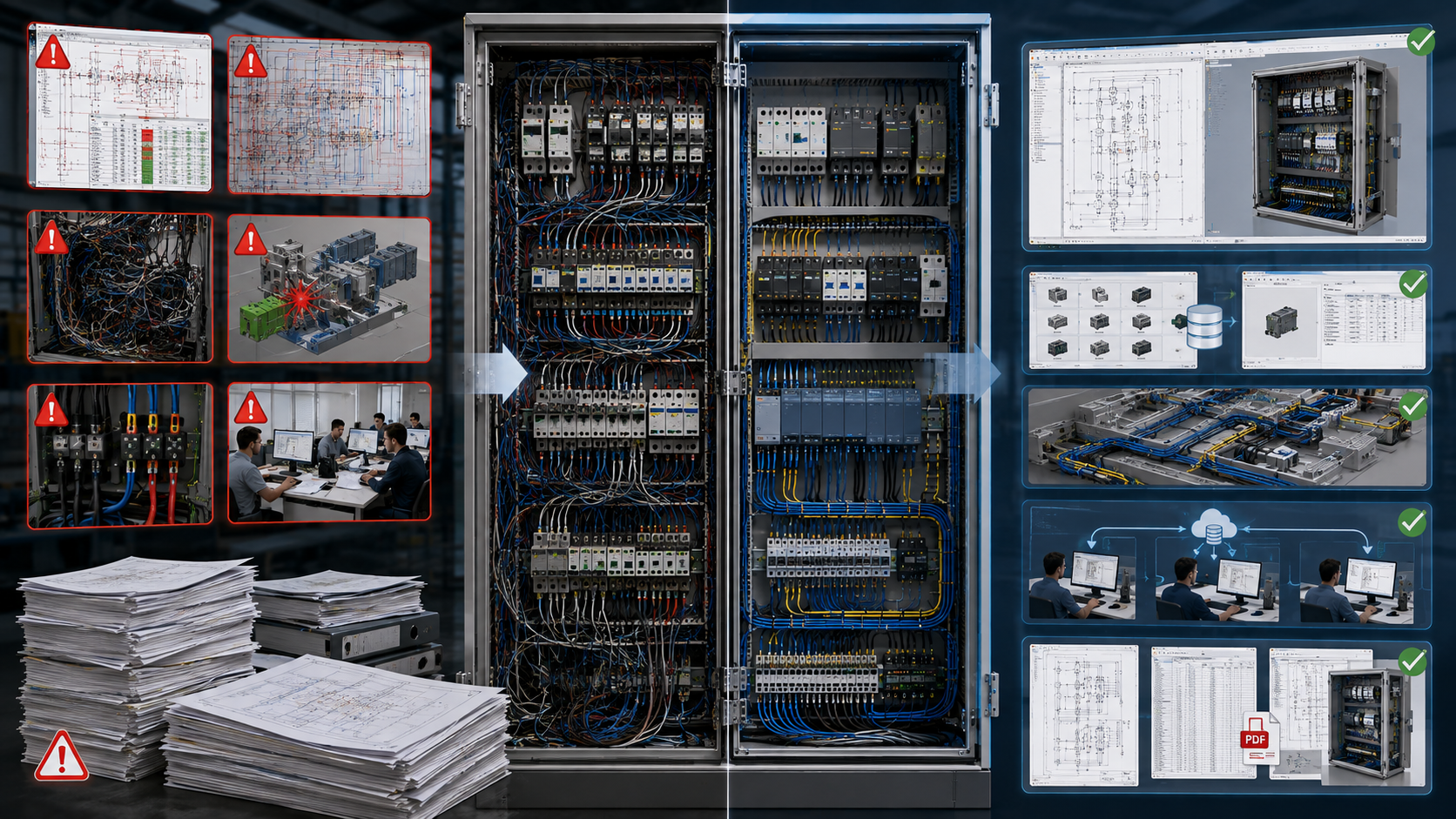
If none of these apply — a single designer, occasional simple panels, low component counts — plain 2D CAD or even the Standard tier may genuinely be enough, and there’s no reason to pay for capability you won’t use.
What’s New in SOLIDWORKS Electrical 2026
Recent releases have specifically targeted the pain points above. SOLIDWORKS Electrical 2026 introduced improvements that give designers more control over wire routing and connector management.
The Route Selected Wires enhancement lets designers route individual wires or specific sets of wires rather than an entire harness at once, giving finer control when verifying fit in tight spaces.
Dynamic Connector Insertion was also improved to make connector insertion and circuit selection more efficient, particularly when working with larger connector configurations.
On the documentation side, connector table enhancements help designers include additional route properties in manufacturing documentation, reducing the amount of manual annotation required and helping keep tables synchronized.
Accessory parts such as pins, sockets, seals, and plugs can also be assigned directly to specific terminals or circuits in 2D, helping produce more complete BOM information without requiring every small accessory component to be modeled individually.
Cable and core management also received improvements, including the ability to switch cable cores and use advanced filtering when dealing with larger multi-core cable projects.
You can review the latest capabilities in the official
SOLIDWORKS 2026 Electrical enhancements
A Practical Way to Decide Which SOLIDWORKS Electrical Tier You Need
If you’re still unsure which tier fits, work backward from your actual workflow rather than the feature list:
-
Count your designers.
One person, working alone, rarely needs more than Schematic Standard. -
Check your handoff process.
If mechanical and electrical design are handled by different people who exchange static files, Electrical 3D closes that gap. -
Look at your last three change orders.
If updating a wire number meant editing more than one document by hand, the database-driven approach will save real time. -
Estimate documentation hours.
If a single engineer spends more than a few hours per project just formatting wire lists and reports, that cost alone often justifies Schematic Professional.
For teams that have already standardized on core SOLIDWORKS 3D CAD, reviewing your existing SOLIDWORKS licensing structure can also help determine how an Electrical workflow fits alongside your current design environment.
Common Questions About SOLIDWORKS Electrical
Can I use SOLIDWORKS Electrical without owning SOLIDWORKS 3D CAD?
Yes. Schematic Standard and Schematic Professional both function as standalone 2D tools. Only Electrical 3D requires a connection to SOLIDWORKS 3D CAD, since it routes wires directly inside the mechanical assembly.
For additional technical details, see the
official SOLIDWORKS Electrical 2026 Help
Is SOLIDWORKS Electrical only for control panels, or does it also handle wire harnesses?
Both. The schematic and 3D routing tools cover panel/cabinet layout as well as multi-core cable and harness design, including segregation rules for keeping power and signal wiring apart.
How steep is the learning curve compared to AutoCAD-based electrical drafting?
Most reviewers note that while the core concepts — symbols, wires, panels — feel familiar coming from AutoCAD, the built-in libraries and database-driven automation mean less manual block creation once the initial learning curve is past.
Do small shops with one electrical designer ever need Electrical 3D?
Sometimes. Even a solo designer benefits from Electrical 3D if they’re personally responsible for both the schematic and the physical panel layout, since it eliminates redoing routing work by hand in two separate tools.
Final Thoughts
SOLIDWORKS Electrical earns its keep once manual reconciliation between schematics, panel layouts, and documentation starts eating real engineering hours — not before.
Teams with simple, low-volume panels and a single designer often don’t need it yet. But once wire counts climb, more than one person touches the same project, or mechanical-electrical fit problems keep surfacing late in the build, the database-driven, synchronized approach tends to pay for itself quickly in reduced rework and cleaner documentation.
Not sure which SOLIDWORKS Electrical tier fits your team?
Explore SOLIDWORKS Electrical Schematic
or contact our SOLIDWORKS Electrical specialists for a workflow-based recommendation.
Explore More SOLIDWORKS Electrical Resources
-
SOLIDWORKS Electrical Schematic
Explore schematic design and electrical documentation capabilities. -
SOLIDWORKS Electrical
Official product overview from SOLIDWORKS. -
SOLIDWORKS Electrical 3D
Learn about 3D cabinet design and electrical routing. -
SOLIDWORKS Electrical Professional
Explore the combined schematic and 3D electrical design package.