
The thing is that when you have plans to upgrade to SOLIDWORKS 2026, it is not a choice to have your hardware in place, but a necessity. The improper installation will result in delayed re-configuration, simulated crashes and hours of wasted time. The correct configuration implies fluid modeling, rapid FEA solves and a workflow that is responsive to your goals.
This ultimate resource dissects all that you need to know about SOLIDWORKS 2026 system requirements, such as minimum specifications, recommended hardware to support heavy simulation and large assembly work.
If you’re still evaluating which version of SOLIDWORKS fits your needs, this guide on can help you compare Standard, Professional, and Premium options effectively.
Why SOLIDWORKS 2026 Hardware Requirements Matter More than Ever Before
Every new SOLIDWORKs version brings performance to a new level and exploits modern hardware more. SOLIDWORKS 2026 is no exception. In addition to dozens of new features, it offers even more direct use of multi-core processing to power simulation, better graphics with a faster GPU in SOLIDWORKS Visualize and complete compatibility with windows 11 as the only operating system it supports.
A fundamental change: Windows 10 is not compatible with SOLIDWORKS 2026. Microsoft stopped supporting Windows 10 in October 2025 and SOLIDWORKS has followed. In case you have not yet switched to Windows 11, it is time to do so. The move will require SOLIDWORKs 2022 or later, and a personal computer with TPM 2.0 security capabilities.
SOLIDWORKS 2026 Minimum System Requirements
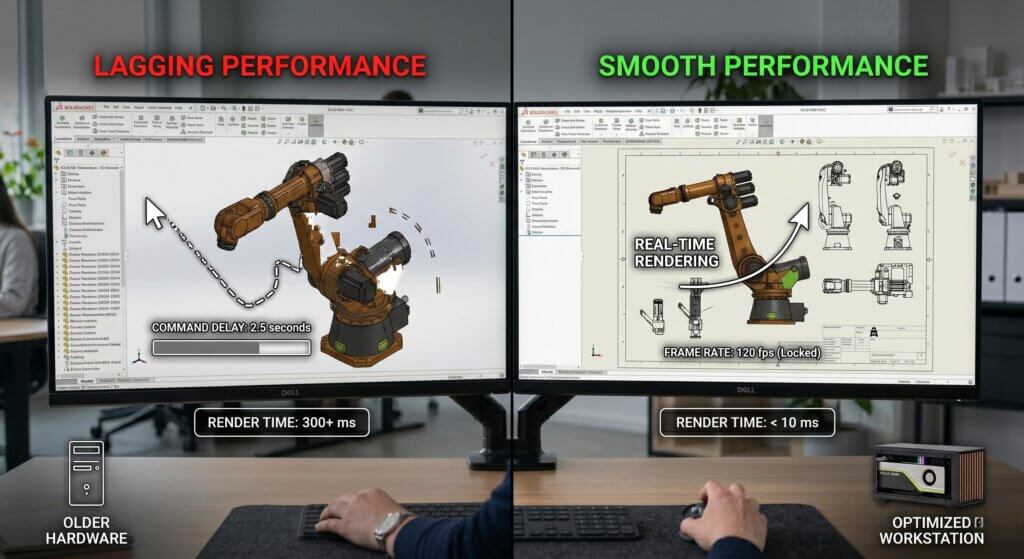
Now that we are ready to delve into the suggested specifications, the minimum requirements to get SOLIDWORKS 2026 started are:
- CPU: 3.3 GHz or more (Intel Core i7/i9 or similar AMD required; the most recent generation is recommended to be used)
- OS: windows 11 64 bit (Windows 10 is not supported)
- RAM: 16 GB minimum
- Storage: SSD is recommended; 250 GB or bigger with 10 percent free space at any time
- Graphics Card: NVIDIA certified workstation graphic card with certified drivers
- Microsoft Office: 2021 or 2024 (Office 2021 has reached the end of life with SOLIDWORKS 2026)
- Network: 100 Mbps minimum bandwidth to access SOLIDWORKS PDM server
Note: GeForce cards available at the consumer grade are not suggested in SOLIDWORKS. The software is based on the OpenGL API and needs certified professional drivers which are only available on NVIDIA RTX Pro (previously Quadro) cards such as the support of RealView Graphics and stability with large assemblies.
Hardware suggestions by Workload Tier
The more you spend on a workstation does not necessarily imply improved performance in SOLIDWORKS. The trick is to organize your hardware to your real workflow. The following is the way to think about it on three levels.
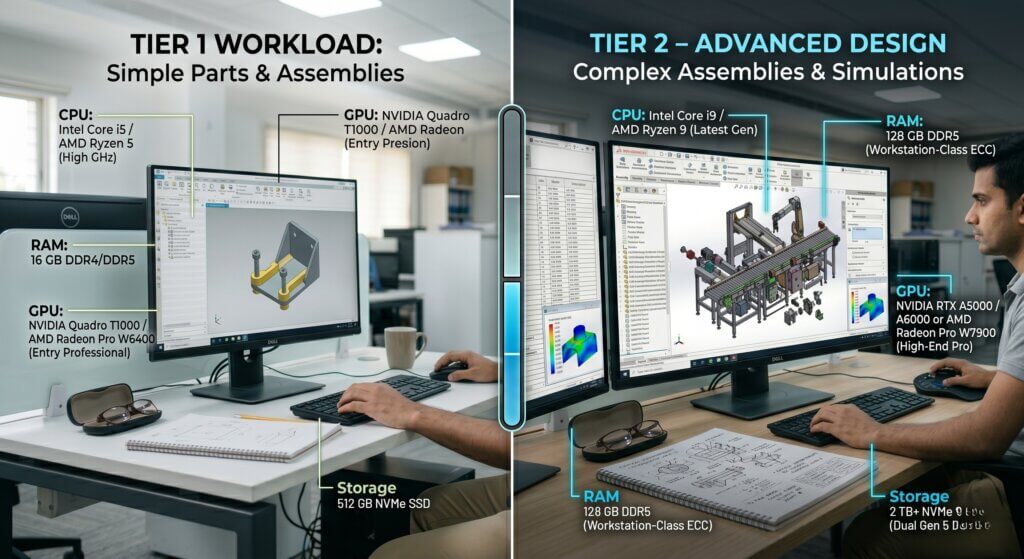
Tier 1 Standard (Light to Mid-Complexity Work)
Best in: Simple parts, small assemblies (less than 200 components), drawings, schematics, BOMs and infrequent visualization.
- CPU: Intel Core Ultra 7 255H / 265K or similar AMD
- RAM: 32 GB
- GPU: NVIDIA RTX 2000 Blackwell (8 GB VRAM)
- Storage: 512 GB – 1 TB NVMe SSD
- OS: Windows 11 Pro
The tier is also used to assist in simple simulations such as linear statics, thermal, frequency, fatigue and simple flow simulations on small assemblies.
Tier 2 – Advanced (Complex Parts and Mid-Size Assemblies)
Best in: complex components with complex shapes, big patterns, hybrid modeling, component assemblies of 200-1000 components, non-linear dynamics, random vibration simulation, and moderate flow simulation.
- CPU: Intel core ultra 7 265H or AMD Ryzen equivalent
- RAM: 64 GB
- GPU: NVIDIA RTX Pro 4000 blackwell (24GB Vram)
- Storage: 1 TB NVMe SSD (preferably Gen 4 or 5)
- OS: Windows 11 Pro
Clock speed is the most important parameter at this level in parametric modeling – SOLIDWORKS rebuilds features one at a time so a faster single core clock prevails over the raw core count in the everyday CAD.
Tier 3 Ultimate (Large Assemblies, FEA and rendering)
Best usage: Those assemblies containing 1,000-200000 components, advanced surfacing, intricate FEA/CFD studies, photorealistic visualization, and Visualize by ray-tracing in SOLIDWORKS.
- CPU: Intel core ultra 9 285K / AMD threadripper pro 9975WX
- RAM: 128 GB DDR5 ECC
- GPU: NVIDIA RTX Pro 6000 Blackwell (48 GB VRAM)
- Storage: 1–2 TB NVMe Gen 5 SSD
- OS: Windows 11 Pro Workstations
Scaling FEA solvers such as Intel Direct Sparse and FFEPlus can be scaled to multiple cores to handle heavy simulation. Nonetheless, empirical results indicate decreasing marginal benefits into 12-16 physical cores because of inter-core communication overheads- even un-accelerated clock speed and memory bandwidth counts.
Important Hardware Deep Dives
Processor (CPU)
SOLIDWORKS is mainly a single threaded program that is used in parametric modeling. Each element in a design tree is computed one at a time, and the most significant CPU factors to daily-life snappiness are Instructions Per Clock (IPC) and boost clock speed.
In case of simulation-intensive workflows, the balance is reversed – FEA solvers can take advantage of multi-core parallelism, and such chips as AMD Threadripper PRO will be valuable in such scenarios.
2026 Recommendations:
- General modeling: Intel Core Ultra 9 285K or AMD Ryzen 9 9950X
- Simulation-intensive: AMD Threadripper PRO 9975WX
RAM
The minimum practical size of SOLIDWORKS 2026 is 32 GB. Serious work in simulation requires at least 64 GB, but this is highly advised – when RAM is depleted when solving a piece, SOLIDWORKs swamps into virtual memory on your SSD, which is far much slower.
ECC (Error Correcting Code) memory is advantageous in long simulation executions, and is necessary on certain Intel Xeon-based motherboards.
Graphics Card (GPU)
This is where a number of users commit expensive errors. RealView Graphics, Order Independent Transparency (OIT) and certified drivers required by SOLIDWORKS are completely supported only by NVIDIA certified workstation GPUs (RTX Pro / and Quadro series).
The generation Blackwell architecture Blackwell 2026 also brings Neural Rendering to SOLIDWORKS Visualize, which speeds up photorealistic rendering with CUDA and support of ray trace cores and AI-based denoising (up to 10x fewer render passes).
Storage
NVMe SSD is no longer optional, it is now a necessity. SOLIDWORKS Simulation generates scratch files that are temporary and which can exceed 100 GB in a solve. Slow drive causes your CPU to spend time waiting on the data reads and writes, and is a significant addition to solve time.
In 2026, the recommended standard of any SOLIDWORKS 2026 workstation is gen 4 or gen 5 NVMe drives.
Network
File access or writing files across a network drive, OneDrive or dropbox is not advisable, as these are not CAD-capable, and may corrupt files as storage systems, when SOLIDWORKS tries to access the file at the same time.
In the case of team, SOLIDWORKS PDM, which includes a dedicated archive server and 100 Mbps client connections is the recommended solution.
Don’t Forget the Display
Monitor is a device that is commonly ignored in any hardware discussion but it has direct impact on your day to day work life.
- Minimum: 1920×1080
- Suggested: 24 or more
- 4K: 27-inch lowest (not suggested on laptops)
Before investing in a 4K setup, always ensure that it is compatible with other enterprise software.
Why will you select TechSavvy to be your SOLIDWORKS Workstation Partner?
In terms of setting up the appropriate SOLIDWORKS environment, working with an authorized reseller ensures that you get accurate guidance, genuine licensing, and long-term support. This is where TechSavvy comes in.
- They help you choose the right SOLIDWORKS package based on your application, whether it is design, simulation, or product development.
- They ensure complete compatibility with official SOLIDWORKS requirements and certified hardware recommendations.
- They provide support across installation, licensing, upgrades, and ongoing technical assistance.
- Their approach is aligned with real engineering workflows, ensuring you get practical and scalable solutions.
TechSavvy is an authorized SOLIDWORKS reseller in India, providing licensed SOLIDWORKS solutions along with expert guidance tailored to your business needs.
Selecting the appropriate SOLIDWORKS 2026 Workstation
The main recommendation is as follows: align hardware spending with real workflow. When working on general CAD, then do not spend too much money on core counts; spend the money on clock speed and on a certified GPU instead. Do not compromise on RAM when you do FEA or CFD.
And make sure that your graphics card is listed on the official SOLIDWORKS Hardware Certification list, before you buy.
For the official minimum requirements, always cross-reference with the SOLIDWORKS System Requirements page and the SOLIDWORKS Hardware Certification list before purchasing any new hardware.